AI in Practice
How to use for building websites, apps and games, for everyday work, and for business.
Building websites, apps and games with AI
Development is no longer typing line by line. It is explaining what to build and checking what builds. Here are the common patterns and what has become easier.
Six patterns of AI development
-
Design in writing first
Write a short document on what to build, why, and when it is done, then hand it to AI. The more specific the description, the more accurate the result.
-
Hand it to an agent, then review
such as and read files, edit them and run commands. You read the changes and decide whether to accept them.
-
Tests set the standard
Put the tests in place first and ask AI to keep fixing until they pass. Tests are the safety net that catches AI's mistakes.
-
Split small, check often
Hand over one feature at a time, check it on screen, and when it works. The bigger the request, the easier it gets tangled.
-
Keep rules in files
Write project rules, commands and don'ts in AGENTS.md, CLAUDE.md or skills, and AI works the same way without you explaining every time.
-
Use several AIs together
Let one AI build and another review, or split the work and run it at the same time. A different AI's eyes find problems the first one missed.
What has become easier
-
Web
A sketch or a description is enough to get a page, and AI also helps set up the , and .
-
Apps
Build and apps from one codebase, and get drafts of and a too.
-
Games
Build a in a day to see if it is fun, generate art, sound and dialogue, and simulate the balance.
-
Everywhere
Paste an and AI explains the cause and what to fix; it also writes docs, translations and tests with you.
What people still have to do
- Decide what to build and who it is for
- Run and check the result yourself, and protect , and personal
- Understand what AI did — if you don't, you can't fix it when it goes wrong
Learn more
How to work with AI
at work has moved from asking and getting answers to handing over tasks and reviewing results. Here are the trends as of October 2026 and ways to use AI today.
Where things stand, in numbers
- 8 in 10 people who say AI has improved their own productivity (McKinsey, The State of AI 2026)
- 27% → 40% large companies scaling AI in at least one function (McKinsey, The State of AI 2026)
- 4% tech leaders with plans to redesign roles for people and agents working together ( survey, October 2026)
Five trends right now
-
Always-on agents
Instead of one-off chats, agents that take a goal and keep working across messengers, email and documents are arriving in work tools.
-
AI coworkers with permissions
AI works as a digital coworker with its own account and permissions. People decide what it can see and what it can change.
-
Handing over long tasks
Beyond minute-long tasks, more people hand over research, organizing and writing that takes hours or more than a day, and just receive the result.
-
Connected to company tools
Connectors and link email, calendars, drives and internal systems to AI so it can find and use scattered information itself.
-
Governance and security come first
As agents multiply, companies have started to monitor and log them like employees on the inside. Small permissions and kept logs are the basics.
Ways to use it today
-
Email and messages
Summarize incoming mail and get reply drafts. Tell AI the tone, length and must-have points, and you will fix less.
-
Meetings
Record meetings to get minutes, decisions and to-do lists, with owners and deadlines sorted out.
-
Documents and reports
Give an outline and key points, get a draft, then correct it with facts and numbers you know. Slides work the same way.
-
Research
Use to compare and organize many sources, then open the source links and check them yourself.
-
Data and spreadsheets
Upload a table and ask in plain words for calculations, charts and summaries. Get the or too so you can reuse them.
-
Automating routine work
Hand weekly chores (collecting reports, reminders, tidying up) to an agent on a schedule and just check the results.
Rules to keep
- Put company secrets and customer only into AI your company allows.
- AI output is a draft — people check facts, numbers and sources.
- Give agents only the permissions they need, and keep a record of what they did.
- Anything that spends money or goes outside (payments, sending email, posting) gets final approval from a person.
Sources (checked October 21, 2026)
Business
What does it take to succeed in business in the age of ? We sort out what has changed and look for the new patterns of business together.

Four changes happening now
- Changes happening now
- The near future
-

Everyone uses AI
These days everyone uses AI, and everyone thinks they use it best. Using AI alone no longer sets you apart.
- Everyone
- uses AI
-

Building software costs almost nothing
No one writes 100% of their with their own mind and hands anymore. Web, app and game development has become more advanced, much faster and much easier. The place for developers who relied only on writing code is disappearing.
- ≈ 0
- development cost
-

Start a business alone, fast
In Seoul, I asked AI and applied for business registration online in 20 minutes; it was done the next day. You could probably do it in 10 minutes. From building the idea to registration and marketing, you can do it alone with AI, without anyone's help.
- 20 min
- to apply for registration · done the next day
-

Reaching customers is harder
As starting a business got easier, far more people are doing it. In the US, solo businesses earning over $1 million a year doubled from 2023 to 2025, and new business applications in the information industry rose about 45% in a year. Someone is probably already running the business you just thought of. Finding people who will buy is far harder than building.
Source 뉴시스(Newsis), 2026-08-04 아시아경제(Asia Economy), 2026-08-05
- 2×
- solo businesses
- +45%
- new business applications
-
Jensen Huang: “Everybody will become an AI company”
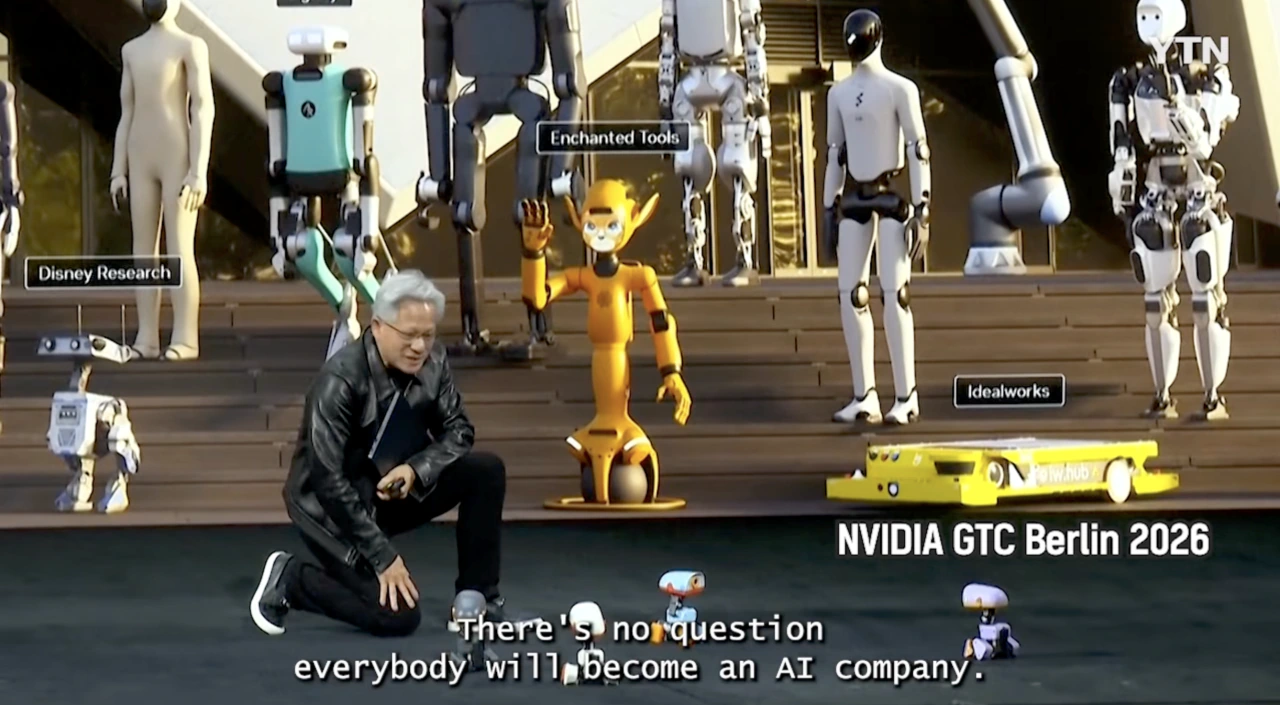
NVIDIA GTC Berlin 2026 keynote (21 October 2026) · Screen: YTN At the World Government Summit in Dubai in February 2024, CEO Jensen Huang said that thanks to AI anyone can now be a programmer, so we should stop telling children they must learn to code. Today you no longer need to learn a or : you tell AI what you want in plain words and it writes the code. His words came true. Then on 21 October 2026, in his keynote at NVIDIA GTC Berlin 2026, he said:
There’s no question everybody will become an AI company.
In the near future, everyone will start a business. Like freelancers, people will easily set up and run their own companies with AI, even alone. With that many founders, finding people who will buy comes first more than ever.
Source ZDNet Korea, 2024-02-28 뉴시스(Newsis), 2026-02-08 연합뉴스(Yonhap) · 파이낸셜뉴스, 2026-10-22 전자신문(etnews), 2026-10-22
-
What decides success or failure?
Is it your ability, the AI's ability, or your business strategy? The of starting a business has changed a lot over the years, but there was always a clear pattern. In the AI era that pattern has completely disappeared, and it is time to find a new one.
What you need to succeed in business in the AI era
Seen the other way round, what everyone has (AI, development, registration) makes no difference. The difference comes from these four things.
-

An eye for choosing, not just the power to build
Since you can build anything, the first is choosing a problem people truly want solved, even if they have to pay.
Why- Building software costs almost nothing
-

Customers before building
Customers are hard to reach. Find buyers before you build, and grow a direct line to them (community, subscribers, regulars) as your asset.
Why- Reaching customers is harder
-

A reason to choose you
The same idea already exists. Use what AI cannot copy, such as your experience, expertise, trust and story, to give people a reason to buy from you.
Why- Everyone uses AI
- Reaching customers is harder
-

Launch small, fix fast
Building costs almost nothing, so launch small instead of perfect, watch how the market reacts, and adjust quickly until you find what makes money.
Why- Building software costs almost nothing
Build an AI robot that hears, speaks, sees and moves for under $100
Buy cheap parts, put them together yourself and let be the robot’s brain. This is how to build a robot that hears with a microphone, speaks through a speaker, sees with a camera and moves on wheels for less than $100 in parts.

Four abilities and the parts behind them
- Parts inside the robot body
- AI brain linked over Wi-Fi
-

Hear — microphone
The INMP441 digital microphone picks up sound and passes it to the board. The board recognizes its wake word on its own, then compresses what you say next and sends it to the AI.
- $3–4
- Microphone
-

Speak — speaker
The MAX98357A amplifier boosts the voice made by the AI and plays it through a small speaker. You choose the voice, tone and language in the AI settings.
- $3–4
- Amplifier
-

See — camera
The OV2640 camera on the ESP32-S3-CAM board takes pictures. Ask “What do you see in front of you?” and the photo goes to the AI’s vision , which describes what is there.
- $10–16
- Board (body · eye)
-

Move — wheels
The DRV8833 motor driver turns two TT gear motors. Spin both wheels the same way to go forward or back; spin them in opposite directions to turn on the spot.
- $2–6
- Motor driver
-
Brain — artificial intelligence
The ESP32-S3 is a tiny computer and cannot run a large AI itself. So it sends sound and photos over Wi-Fi to an AI , and the AI listens, thinks and sends back what to say and what to do. The robot tells the AI about its wheels and camera as tools (), and the AI calls those tools when it needs them.
From one spoken sentence to an answer and a move -
Listen
-
Turn speech into text
-
AI thinks
-
Run a tool
-
Answer out loud
-
Parts list
You can buy everything from online stores such as AliExpress and Amazon. Prices are rough ranges as of October 2026 and change with the seller, shipping and exchange rates. The total stays under $100, so spend what is left on spare wires and parts.
| Part | Model | What it does | Rough price |
|---|---|---|---|
| Board (body · eye) |
ESP32-S3-CAM (N16R8 · OV2640)
|
A tiny computer with Wi-Fi. Its camera makes it the eye too. It must be an ESP32-S3 (an ESP32-S2 will not work). | $10–16 |
| Microphone |
INMP441 I2S
|
The ear that takes in sound digitally | $3–4 |
| Amplifier |
MAX98357A I2S
|
Boosts the board’s to drive the speaker | $3–4 |
| Speaker |
3W 4Ω/8Ω
|
The mouth the voice comes out of | $2–4 |
| Motor driver |
DRV8833 / TB6612FNG
|
Lets the board’s weak signal switch the motors’ strong current on and off | $2–6 |
| Wheeled body |
2WD chassis · TT motor ×2
|
A two-wheel car kit with a plate, two wheels, a caster wheel and two TT gear motors | $10–15 |
| Battery |
18650 ×2 · holder · switch
|
Two protected 18650 cells (7.4V) with a holder and power switch | $8–15 |
| Voltage converter |
5V 3A buck converter
|
Steps 7.4V down to the 5V the board and amplifier use | $2–4 |
| Wires |
Jumper wires · breadboard
|
Jumper wires and a small breadboard — connect without soldering | $3–5 |
| Servo motor (optional) |
SG90
|
Carries the camera so the robot can turn its head | $2–3 |
| Total (rough) | $45–76 |
Wiring — pin map
Connect everything with the power off. The microphone and amplifier pins match the ESP32-S3-CAM breadboard setup in the xiaozhi firmware, so you can use them as they are. The camera just plugs into the board’s flat connector. Tie all the GNDs together.
-
Microphone INMP441 I2S
- WS
- GPIO 1
- SCK
- GPIO 2
- SD
- GPIO 42
- VDD
- 3V3
- L/R · GND
- GND
-
Amplifier MAX98357A I2S
- DIN
- GPIO 39
- BCLK
- GPIO 40
- LRC
- GPIO 41
- VIN · SD
- 5V
- GND
- GND
-
Motor driver DRV8833 / TB6612FNG
- AIN1
- GPIO 21
- AIN2
- GPIO 47
- BIN1
- GPIO 14
- BIN2
- GPIO 38
- VM
- 7.4V (18650 ×2)
- GND
- GND
-
Voltage converter 5V 3A buck converter
- IN
- 7.4V (18650 ×2)
- OUT 5V
- ESP32-S3 5V · MAX98357A VIN
- GND
- GND
The motor pins are an example picked from the pins left free when no screen (LCD) or lamp is attached. Boards differ, so always check the pin names printed on yours, and avoid GPIO 0·3·45·46 (used at boot) and GPIO 35–37 (used by ). Set the same numbers for the motor pins in the firmware.
Build it step by step
-
Order the parts
Order from the list above. Pick an ESP32-S3 camera board with 8MB PSRAM (N16R8). Overseas shipping can take a while, so buy spare wires at the same time.
-
Assemble the body
Follow the two-wheel kit’s manual and screw the motors, wheels, caster wheel and battery holder to the plate. Push the board, microphone and amplifier into the breadboard and set it on the plate.
-
Wire it up
Connect the wires following the pin map above. Battery + goes through the power switch to the motor driver (VM) and the voltage converter; the converter’s 5V goes to the board and the amplifier. Before switching on, check again that + and − are not swapped.
-
Flash the firmware
Flash xiaozhi-esp32, an voice AI firmware, to the board over USB. The easiest start is a ready-made file in a web flasher; to build it yourself, choose the breadboard board with a camera (bread-compact-wifi-s3cam) in ESP-IDF.
-
Connect Wi-Fi and the brain
With your phone, join the Wi-Fi the robot creates (it starts with Xiaozhi-) and enter your home Wi-Fi (2.4GHz) at http://192.168.4.1. The robot reads out a six-digit ; register it in the xiaozhi.me console and choose a name, voice, language and AI model.
-
Add movement tools
Copy the board folder to make your own robot board and register self.car.move (drive the wheels) and self.car.stop (stop) as MCP tools (code below). Now when you say “Go forward a little”, the AI calls that tool.
-
Test it
Say the wake word or press the button on the board to start talking. Ask “What do you see in front of you?” and it takes a photo with the built-in camera tool (self.camera.take_photo) and answers. Test movement with the wheels lifted off the floor at first.
Three ways to choose the brain
Whichever you choose, keep the AI’s on the server only, never in the robot. The robot only holds a device code.
-
xiaozhi.me — the easiest start
The official xiaozhi server. Register the device code and start talking right away; individuals can use it for free (terms may change). It is run in China, though, so your voice and photos go there.
-
Your own server — pick any AI
Run the open-source xiaozhi-esp32-server on your server with and change the server address in the firmware. You choose , the (, , DeepSeek, and more), and the vision model, and voice and photos pass through your own server.
-
Real-time voice AI — the most natural talk
Connect straight to the OpenAI Realtime , as ElatoAI does. One model hears, thinks and speaks, so answers are quick and natural (under 2 seconds round trip), but you pay for every minute of conversation.
Give the robot body movement tools
The xiaozhi firmware has an MCP server inside the robot body. Register a tool’s name, description and inputs as below, and the AI reads that description during a conversation and calls the tool at the right moment. Drive() is a short function that switches the four motor pins above and stops the motors when the time is up.
// main/boards/my-robot-car/ (copy of bread-compact-wifi-s3cam)
auto& mcp = McpServer::GetInstance();

mcp.AddTool("self.car.move",
    "Drive the robot car. direction: forward, backward, left, right. ms: 100-3000",
    PropertyList({
        Property("direction", kPropertyTypeString),
        Property("ms", kPropertyTypeInteger, 100, 3000),
    }),
    [this](const PropertyList& p) -> ReturnValue {
        Drive(p["direction"].value<std::string>(), p["ms"].value<int>());
        return true;   // Drive() stops the motors when the time is up
    });

mcp.AddTool("self.car.stop", "Stop the motors now", PropertyList(),
[this](const PropertyList&) -> ReturnValue { Stop(); return true; });Rules to keep
- Keep API keys on the server, never in the robot (ESP32). Anyone can read out the firmware flashed to a board.
- Limit each move to a few seconds and make the robot stop by itself when the time is up. Always fit a power switch you can reach by hand.
- Use protected 18650 cells, never put + and − the wrong way round, and do not leave them charging unattended. Children build it with an adult.
- The microphone and camera send the sound and sight of your home to a server. Tell your family, and use your own server if that worries you.
- Wi-Fi works on 2.4GHz only. When the internet drops, the brain drops too and the robot cannot talk. If you use a paid AI API, set a spending limit first.
Other ways
-
A walking robot like the video
The Sesame robot in the reference video walks on four legs with an ESP32 board, eight MG90S servos and a small OLED screen for its face (about $50–60 in parts; needs a printer and soldering). It has no microphone, camera or AI, so switch the board to an ESP32-S3 and add a microphone and amplifier to give it a brain the same way.
Source Reference video
-
Raspberry Pi Zero 2 W
Add a camera and the same microphone and amplifier to this $15 computer and use AI APIs and OpenCV straight from (about $60–95 in total). It can do a lot, but it boots slowly and uses more power.
-
Start with a kit
If choosing parts feels hard, start talking with a xiaozhi kit that bundles an ESP32-S3 camera board, microphone and speaker, such as the Keyestudio KS5028, then add wheels and a motor driver.
References (checked 2026-10-22)
- Dorian Todd — How I Made This Tiny Walking Robot From Scratch
- Sesame Robot — the walking robot in the video (GitHub)
- xiaozhi-esp32 — open-source voice AI firmware for ESP32 (GitHub)
- xiaozhi-esp32 — MCP tools (AddTool · self.camera.take_photo)
- xiaozhi-esp32 — ESP32-S3-CAM breadboard pins (config.h)
- xiaozhi-esp32-server — run the brain on your own server (GitHub)
- Keyestudio KS5028 — ESP32-S3 camera AI kit: wiring · flashing · xiaozhi.me
- OpenAI Cookbook — Realtime API speech on ESP32 (ElatoAI)